User Guide for Payment Portal V2 (Digital Wallet)#
Introduction#
The Payment Portal (Digital Wallet) is a web-based application that enables merchants (billers) to monitor payment activities, manage digital wallets, perform settlements, generate reports, and configure portal settings.1. Getting Started#
Open your preferred web browser and navigate to the Bill24 Portal.
2. Login#
Enter your account credentials to access the Payment Portal.1.
Enter your registered Email Address.
4.
After successful authentication, the system redirects you to the Business Profile page.
If your login credentials are incorrect, the system will display an error message. Please verify your email address and password before trying again.
OR need to register account.
3. Business Profile#
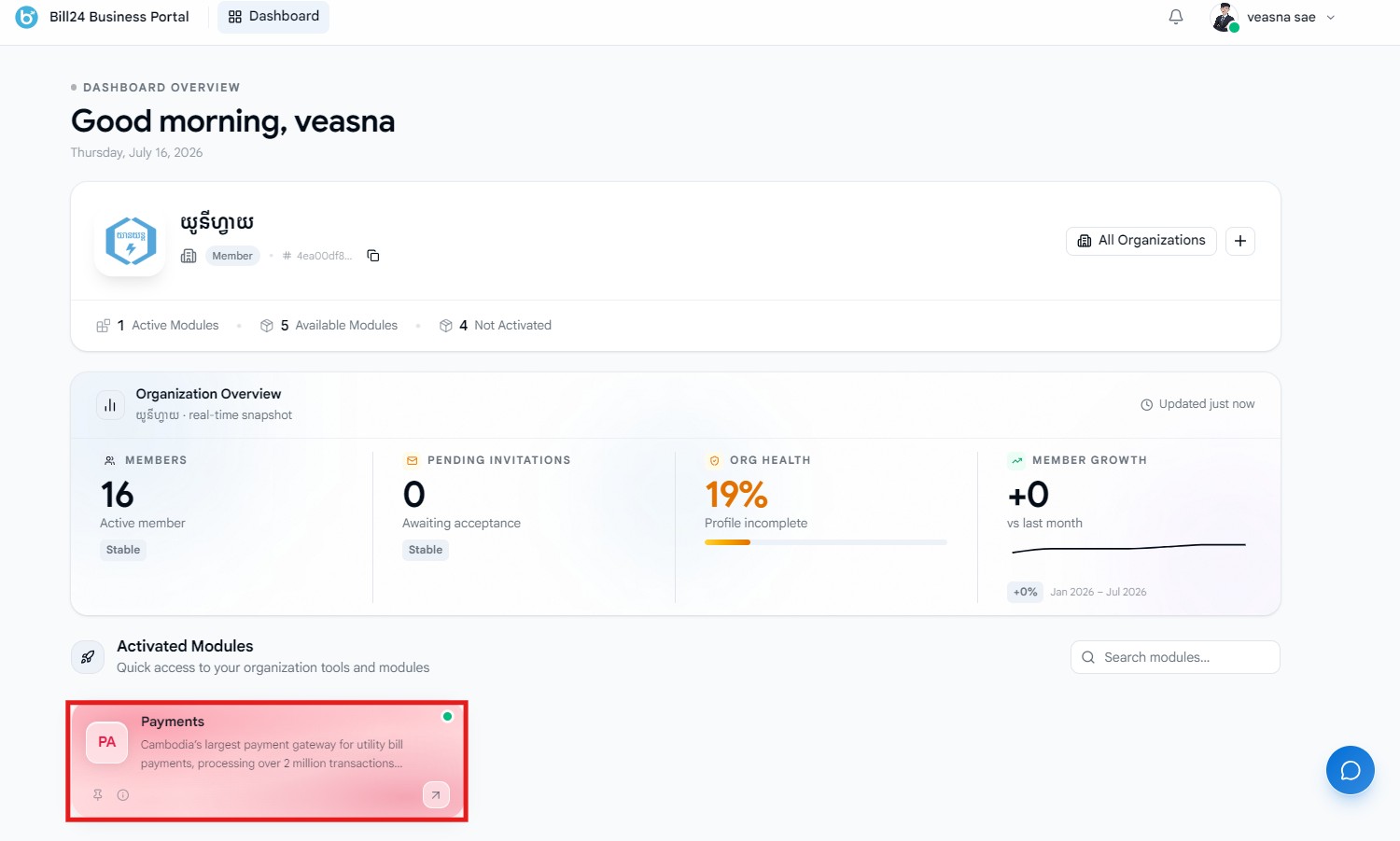
After signing in, users are directed to the Business Profile page.If your account has access to multiple business profiles, select the appropriate profile before entering the Payment Portal.1.
Locate the desired Business Profile.
2.
Click the Payment module associated with the selected business.
3.
The system opens the Payment Portal Dashboard.
4. Dashboard#
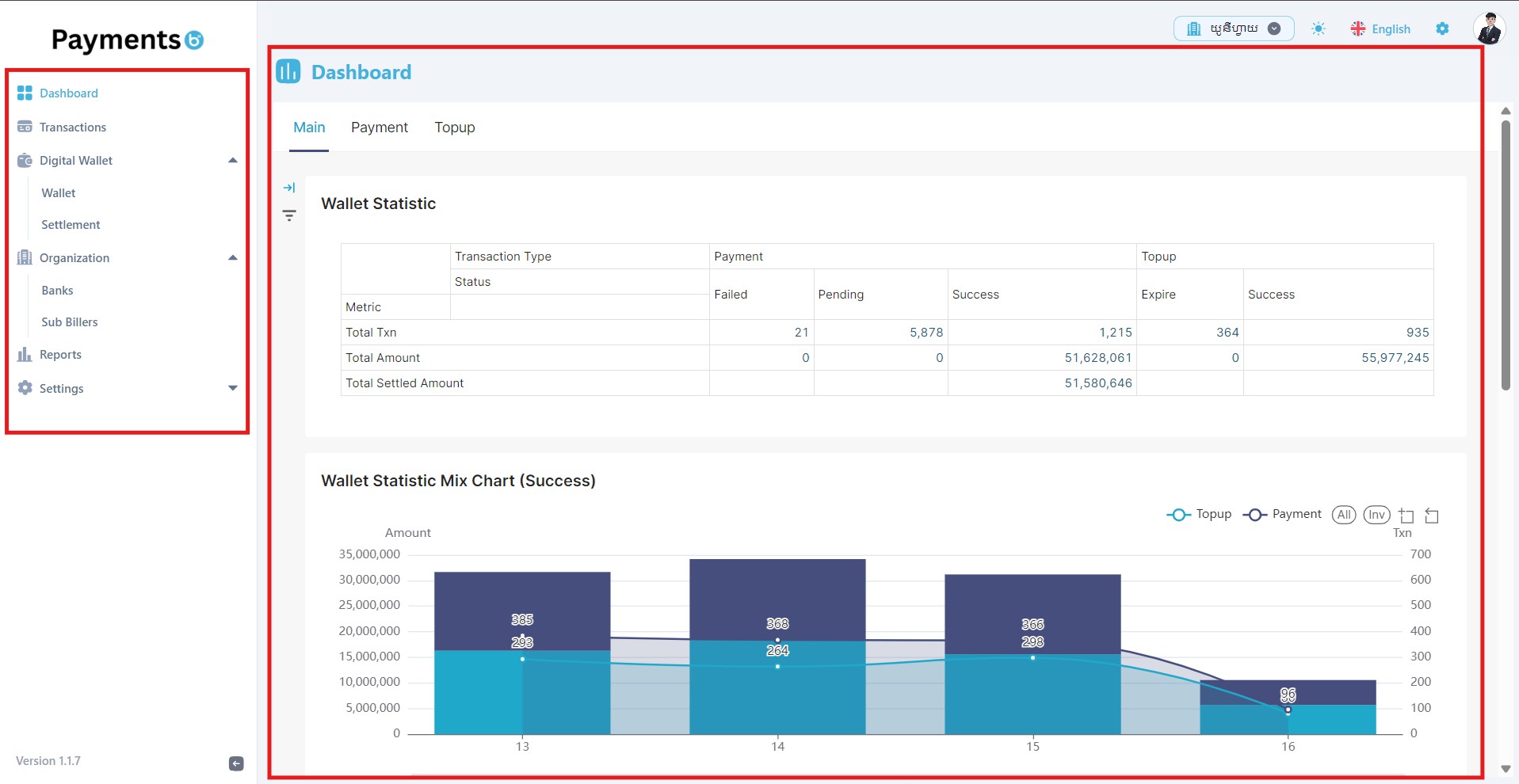
The Dashboard is the main page displayed after entering the Payment Portal. It provides a quick overview of payment activities, wallet statistics, and system information, allowing users to monitor business operations efficiently.The page consists of two main sections:The left navigation menu provides access to all available modules.| Menu | Description |
|---|
| Dashboard | View system statistics and summaries. |
| Transactions | Search and review payment transactions. |
| Digital Wallet | Manage wallets and settlement information. |
| Organization | View participating banks and Sub Billers. |
| Reports | Generate and export reports. |
| Settings | Configure user preferences and system settings. |
Digital Wallet#
Organization#
5. Transactions#
The Transactions module displays all payment transactions received from participating banks. Users can search, review, and export transaction records for operational monitoring and reconciliation.View all customer payment transactions.
Review transaction details.
Monitor transaction processing status.
Export Transactions#
Users can export transaction records for reporting, auditing, and reconciliation purposes.Supported export formats include:Exported reports contain transaction information based on the selected search criteria and filters.
6. Wallet#
The Wallet module enables merchants to monitor and manage all wallets within the Payment Portal. Users can view wallet balances, search for wallets, transfer funds, export wallet information, and access detailed wallet records.The page also provides an overview of company funds and customer wallets, allowing users to quickly monitor the financial status of the business.
The summary section at the top of the page provides a quick overview of wallet information.| Summary | Description |
|---|
| Company Funds | Displays the total available balance across all company wallets. |
| Customer Wallets | Displays the total number of active customer wallets. |
| On Hold | Displays the total amount currently on hold waiting for solution confirm |
The following actions are available from the toolbar.| Action | Description |
|---|
| Refresh | Reload the latest wallet information and balances. |
| Transfer Funds | Transfer funds between supported wallets. |
| Export | Export wallet information in Excel or PDF format. |
Wallets are organized into the following categories.| Wallet Type | Description |
|---|
| All | Displays every wallet in the system. |
| Main Wallet | Stores all funds received from successful customer top-up transactions made through participating banks. |
| Sub Biller Wallet | Stores settlement funds transferred from the Main Wallet to the corresponding Sub Biller. |
| Fee Wallet | Stores transaction fees collected based on the configured fee settings. |
| Customer Wallet | Displays wallets belonging to customers. |
Users can quickly locate wallets using the available search and filtering options.| Feature | Description |
|---|
| Search | Search wallets by wallet name or wallet ID. |
| Filter | Filter wallets by status (Active or Frozen) and currency (KHR or USD). |
| Sort | Sort wallet records based on the selected criteria. |
7. Wallet Details and Actions#
Each wallet provides an Actions menu that allows users to perform wallet management operations.Click the More (⋮) button on a wallet card to display the available actions.
| Action | Description |
|---|
| View | Open the wallet details page to view wallet information, transactions, ledger records, and activity logs. |
| Manual Adjustment | Perform a manual credit or debit adjustment to the wallet balance. |
| Transfer Fund | Transfer funds from the selected wallet to another supported wallet. |
| Set Overdraft | Configure the overdraft limit for the selected wallet. |
| Download Statement | Download the wallet statement for reporting or reconciliation. |
| Freeze | Freeze the wallet to temporarily prevent transactions. |
The available actions can't be undone , so please verify before make any confirm.
7.1 View Wallet Details#
Select View to open the wallet details page.The Wallet Details page provides complete information about the selected wallet, including its balance, transaction history, ledger records, and activity logs.Users can also perform wallet operations directly from this page.
The following actions are available within the Wallet Details page.Transfer funds to another wallet.
Download the wallet statement.
Perform manual adjustments (Credit or Debit).
Each wallet displays general information, including:
The Transactions tab displays all transactions associated with the selected wallet.
Ledger#
The Ledger tab displays all accounting entries that affect the wallet balance.Ledger records provide a complete audit trail of wallet balance changes.Typical information includes:
The Activity Log records administrative actions performed on the wallet.The activity log helps administrators track changes made to the wallet over time.
7.2 Manual Adjustment#
The Manual Adjustment feature allows authorized users to manually update a wallet balance.Users can perform either:Credit — Add funds to the wallet.
Debit — Deduct funds from the wallet.
Manual adjustments should only be performed by authorized users.
7.3 Transfer Fund#
The Transfer Fund feature allows users to transfer funds from one wallet to another supported wallet.After successful validation, the system completes the transfer and updates both wallet balances.
7.4 Set Overdraft#
The Set Overdraft feature allows administrators to configure an overdraft limit for a wallet.When enabled, the wallet is permitted to maintain a negative balance up to the configured overdraft limit.This feature is typically used for wallets that require temporary credit during business operations.
7.5 Download Statement#
The Download Statement feature generates a wallet statement containing transaction history and balance information.Users can download the statement for:
7.6 Freeze Wallet#
The Freeze feature temporarily disables wallet transactions.Incoming and outgoing transactions are restricted.
The wallet remains in the system.
The wallet can be reactivated by an authorized user.
Only users with the appropriate permissions can freeze or reactivate a wallet.
8. Settlement#
The Settlement module allows merchants to manage and monitor settlement transactions between the Main Wallet and Sub Biller Wallets. It provides complete visibility into settlement requests, processing status, and settlement history.Settlement ensures that funds collected in the Main Wallet are transferred to the appropriate Sub Biller Wallets.
The Settlement module allows users to:View all settlement transactions.
Monitor settlement status.
Search settlement records.
Review settlement details.
Export settlement reports.
Users can search and filter settlement records using available search options.Common search criteria include:These filters help users quickly locate specific settlement records.
Click Generate To View the Unsuccessful Statement transaction to Sub Biller.The fail transaction will display here for user to manual.After Confirm payment success it will settle amount to Sub biller account.
9. Banks#
The Banks module displays all participating banks that are currently activated for the selected Business Profile.This page allows merchants to review supported banks and export the bank list for operational or reporting purposes.
10. Reports#
The Reports module provides various reports that help merchants monitor transaction activity, perform reconciliation, and analyze payment performance.Reports can be filtered, viewed online, and exported for further analysis.
10.1 Transaction Details Report#
The Transaction Details Report provides detailed information for every payment transaction.View transaction details.
10.2 Transaction Report#
The Transaction Report provides a summarized view of customer transactions.Analyze customer transaction volume.
10.3 Transaction Summary by Bank#
The Transaction Summary by Bank report groups transactions based on participating banks.This report helps merchants understand transaction distribution across different banking partners.View transaction volume by bank.
Compare bank performance.
10.4 Monthly Transaction Report#
The Monthly Transaction Report summarizes transaction activity for each month.This report is useful for financial analysis, reconciliation, and business reporting.Review monthly transaction summaries.
Compare monthly transaction performance.
10.5 Transaction Error Report#
The Transaction Error Report displays transactions that failed or were rejected during processing.This report helps merchants investigate issues and monitor unsuccessful payment attempts.View failed transactions.
Review rejection reasons.
Reports can be filtered before exporting to include only the required transaction data.
11. Settings#
The Settings module allows users to personalize the Payment Portal and configure system preferences. Depending on user permissions, additional administrative settings such as Fee Configuration and Overdraft Settings may also be available.
The General section allows users to customize the appearance and behavior of the Payment Portal.Choose the preferred application theme to improve the user experience.Available options may include:
Select the primary color used throughout the application interface.Changing the primary color affects the visual appearance of menus, buttons, and other interface components.
Select the preferred language used throughout the Payment Portal.Changing the language updates menus, labels, and system messages.
Configure the preferred date format used throughout the application.The selected format will be applied to:
11.1 Fee Configuration#
The Fee Configuration page allows authorized users to configure transaction fees charged during payment processing.Fee configurations determine how transaction fees are calculated and applied to supported payment services.Create new fee configurations.
Edit existing fee configurations.
Enable or disable fee rules.
Fee configuration changes affect future transactions only and do not modify previously completed transactions.
11.2 Overdraft Settings#
The Overdraft Settings page allows administrators to configure default overdraft limits for supported wallets.An overdraft limit defines the maximum negative balance a wallet is permitted to hold.View overdraft configurations.
Configure overdraft limits.
Modify existing overdraft settings.
Enable or disable overdraft support.
Modified at 2026-07-20 07:11:25